Paste a screenshot.
Get an on-brand post.
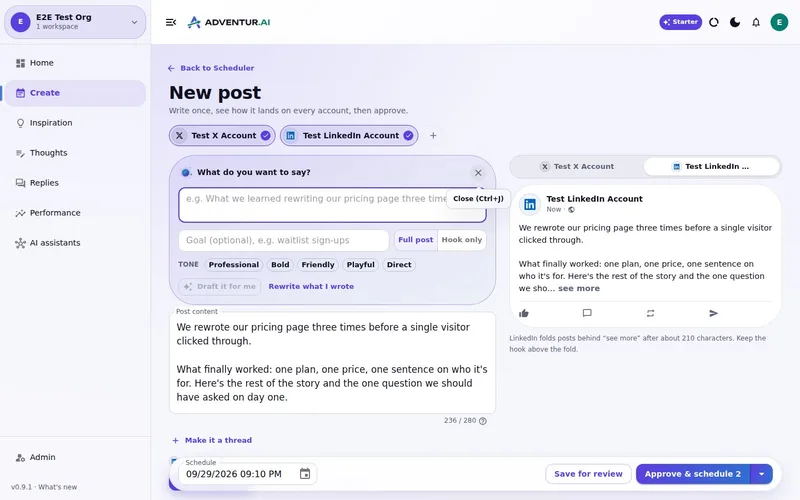
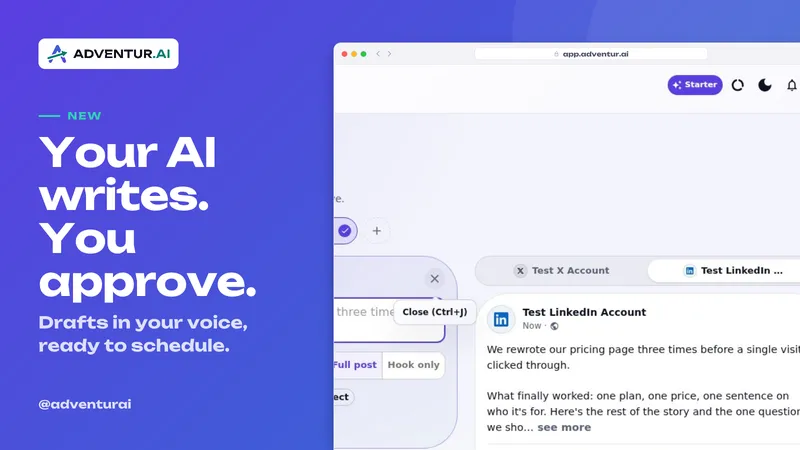
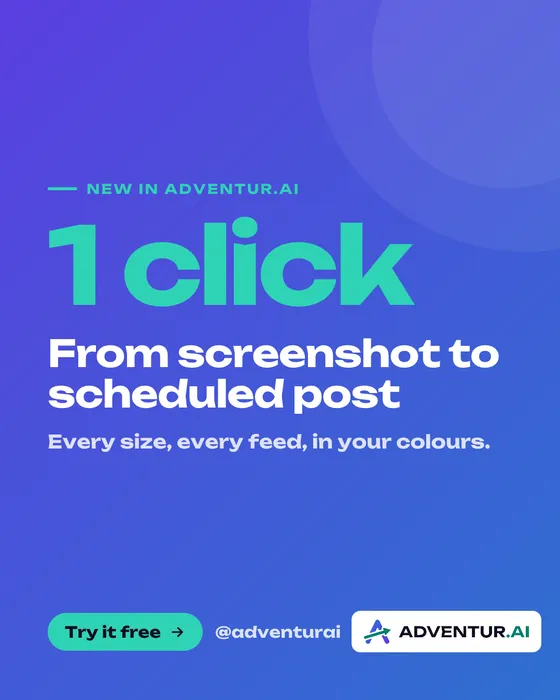
Drop a screenshot or photo into a post and turn it into an image in your colours, fonts, logo and handle, sized for every feed. See it live while you pick a look. No design tool, no templates to wrestle.
One message.
Every feed, on brand.
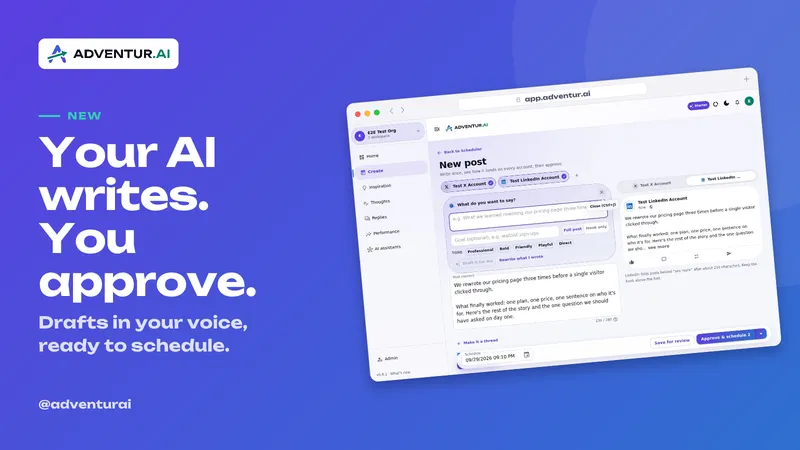
Write it once. Each size is laid out for its feed, not cropped, with the same words, handle and colours. Switch the theme to see light and dark.
Show the product,
or just say it big.
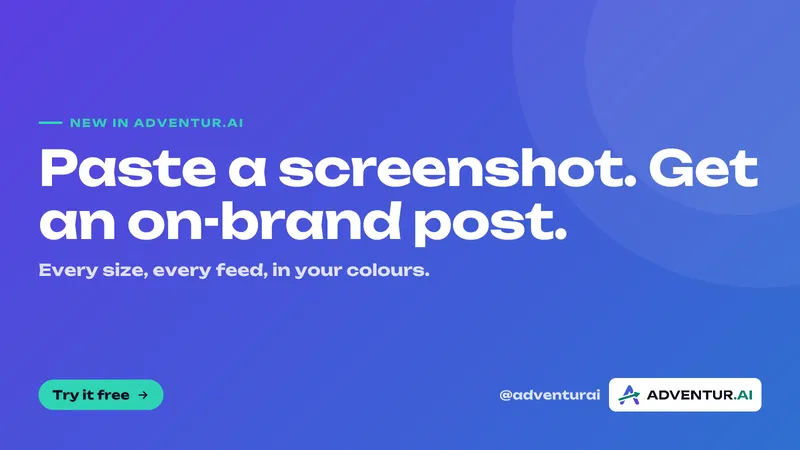
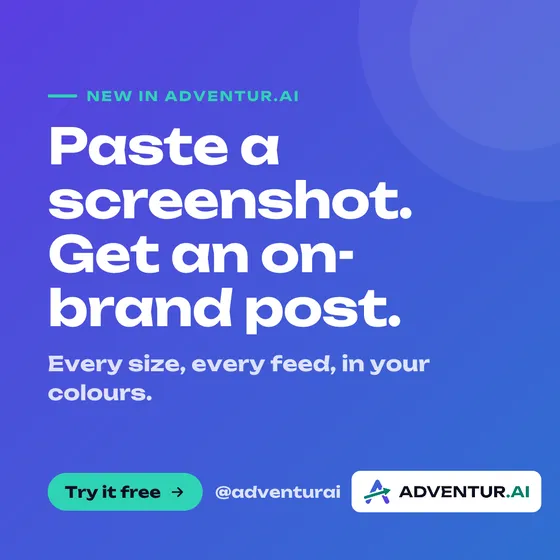
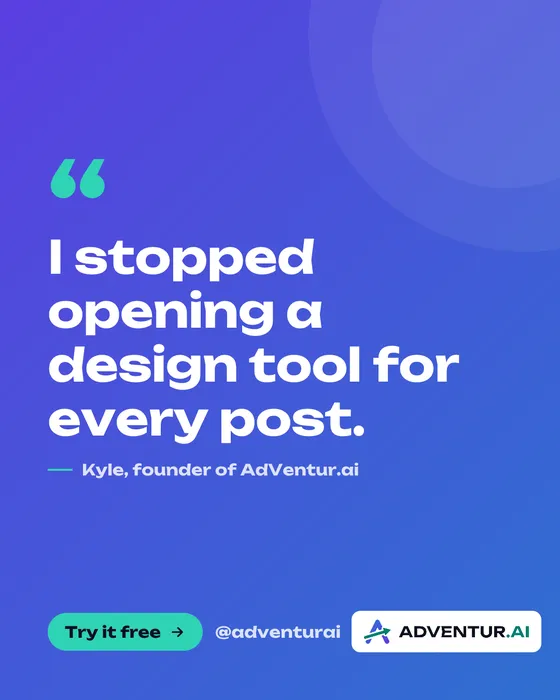
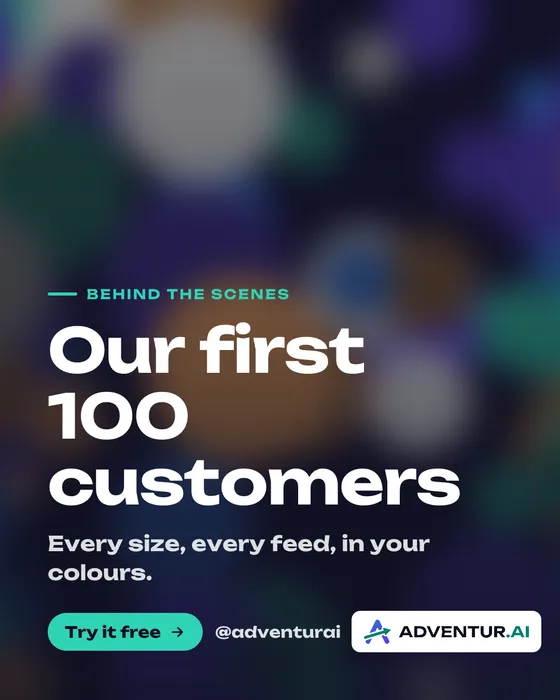
Screenshot looks frame your app in a browser window. Text looks need no image at all. Every one uses your brand kit.
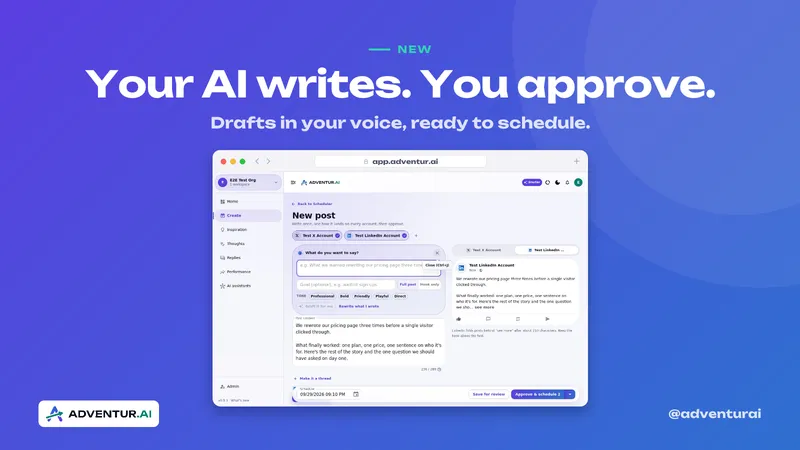
From clipboard
to scheduled post.
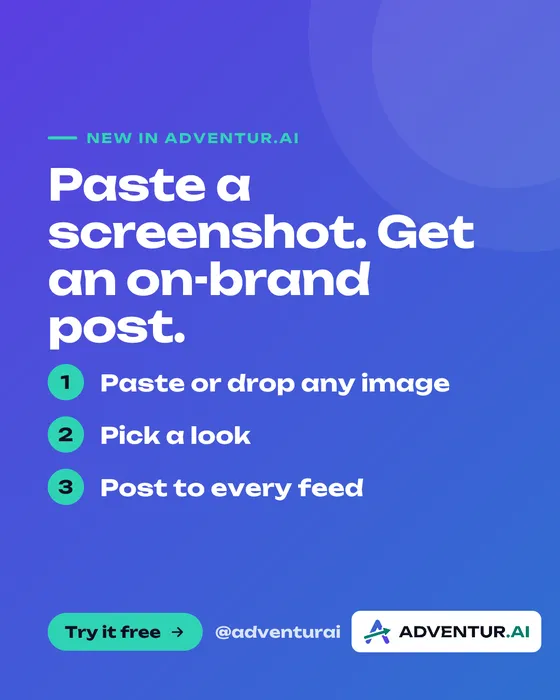
Paste or drop
Copy a screenshot and press paste in the post composer, or drop in a photo or video. Each file shows its upload progress, and you can post it just as it is.
Pick a look
Choose Make it branded and pick a look. The preview updates as you type, in your colours, fonts and logo, with your handle one switch away.
Attach and approve
The image goes on the post, sized for the account you are posting to. It waits in Review with the copy until you approve it.
Your assistant
can make them too.
Connect AdVentur.ai to Claude or ChatGPT and ask in the chat. It uses the same looks and brand kit, and the result waits in Review like every other post.
You: Here's a screenshot of the new dashboard. Make it an on-brand X post, plus a square one for LinkedIn. Tool call create_media_upload: Screenshot uploaded Tool call create_app_screenshot: Tilted · landscape + square Tool call create_draft_post: X + LinkedIn drafts in Review Agent: Done. Both drafts carry the framed screenshot in your colours with @adventurai in the corner. They're waiting in Review. X post, Pending approval · image attached: The new dashboard is live. Everything waiting on you, on one screen. LinkedIn post, Pending approval · image attached: We rebuilt the dashboard around one question: what needs me today? Here's the answer.
Illustrative demo. Your numbers and drafts will differ.
Questions, answered.
Do I need a design tool?
No. Your brand kit holds your colours, fonts and logo, and every look uses it. You pick a look and type the words; the layout is done for you.
Can I post the screenshot without branding?
Yes. A pasted or dropped image is attached as it is. Making it branded is one click, and switching back to the original is one more.
Which sizes does it make?
Landscape for X, square for LinkedIn and Facebook, portrait for Instagram, story for Stories and Reel covers, and link previews. The studio picks the right one for the account you are posting to.
Can I hide my handle?
Yes. When the account you are posting to has a handle, it shows as a switch you can turn off. Otherwise you can type one in or leave it blank.
Can my AI assistant make these?
Yes. Connected to Claude, ChatGPT or any MCP client, your assistant can frame a screenshot or make a branded image in several sizes at once, and attach it to a draft for you to approve.